
You’ve setup Nextcloud on your Mac, now you want to be able to access some of those files from your phone. This guide is going to be a little generic as to work across both Android and iOS.
Note the mobile app does not sync all your files to your phone, instead it just allows you to view them as needed.
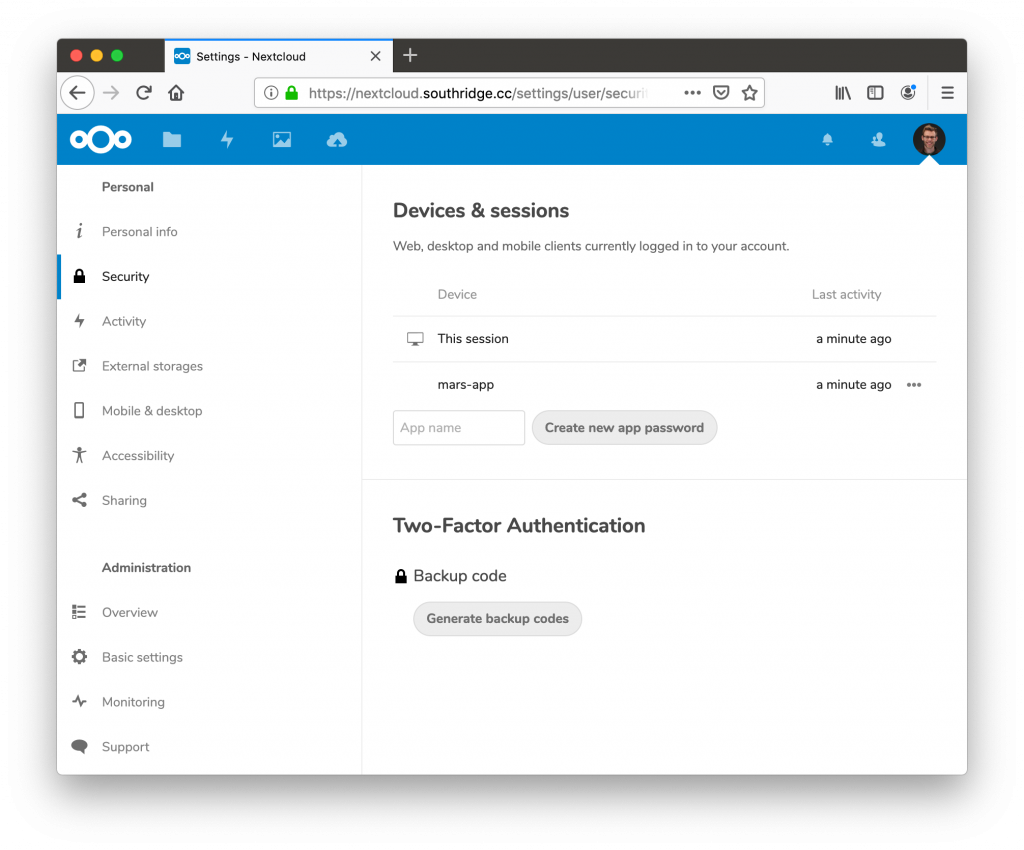
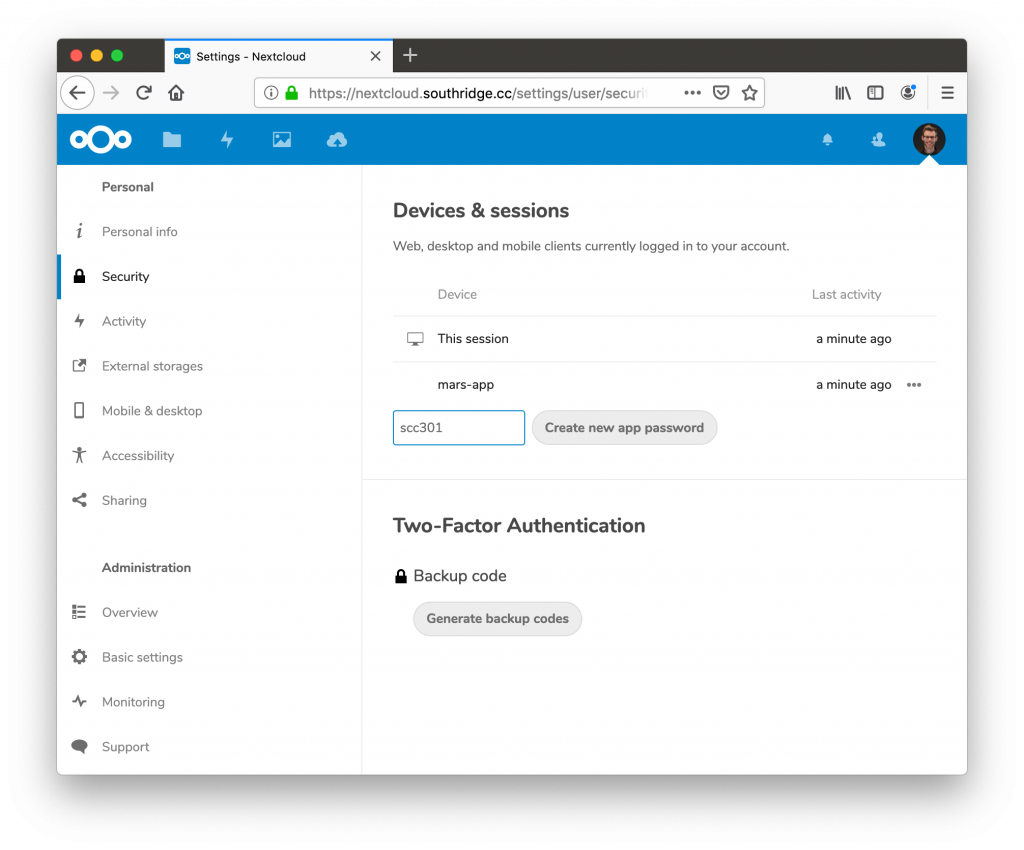
Create An App Password
I highly recommend using an app password for the sync client on your phone, this will allow it always remain connected even if we change your main password.
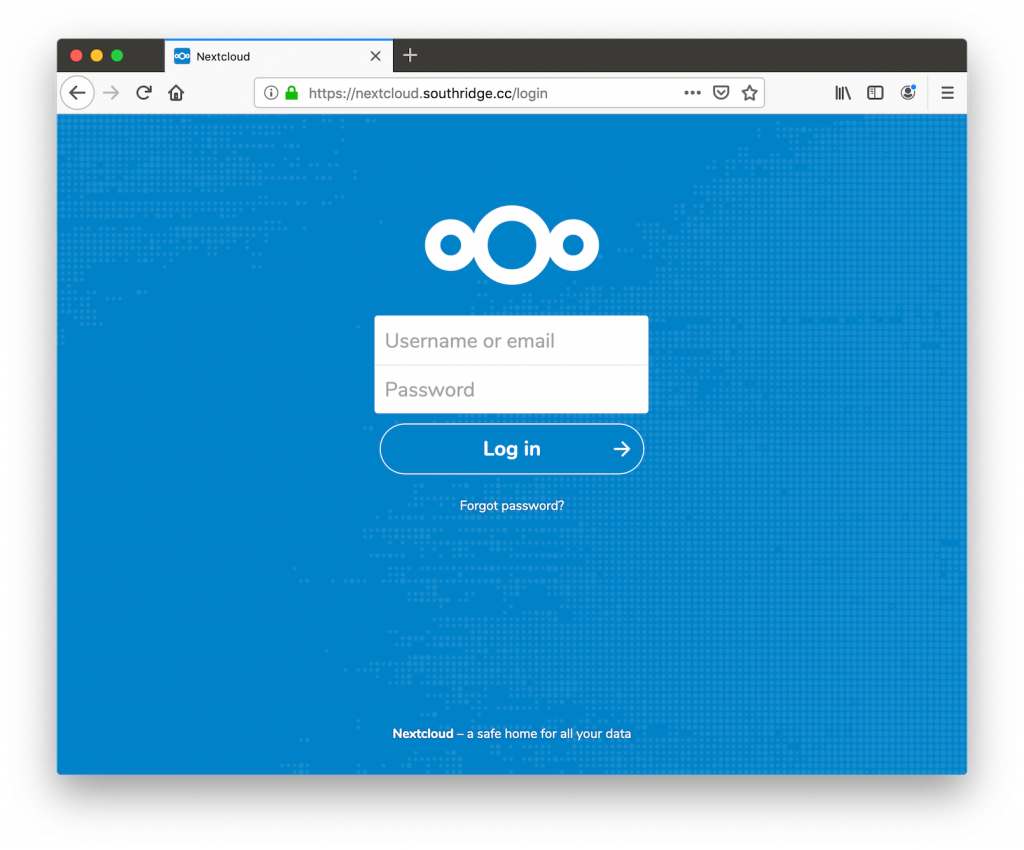
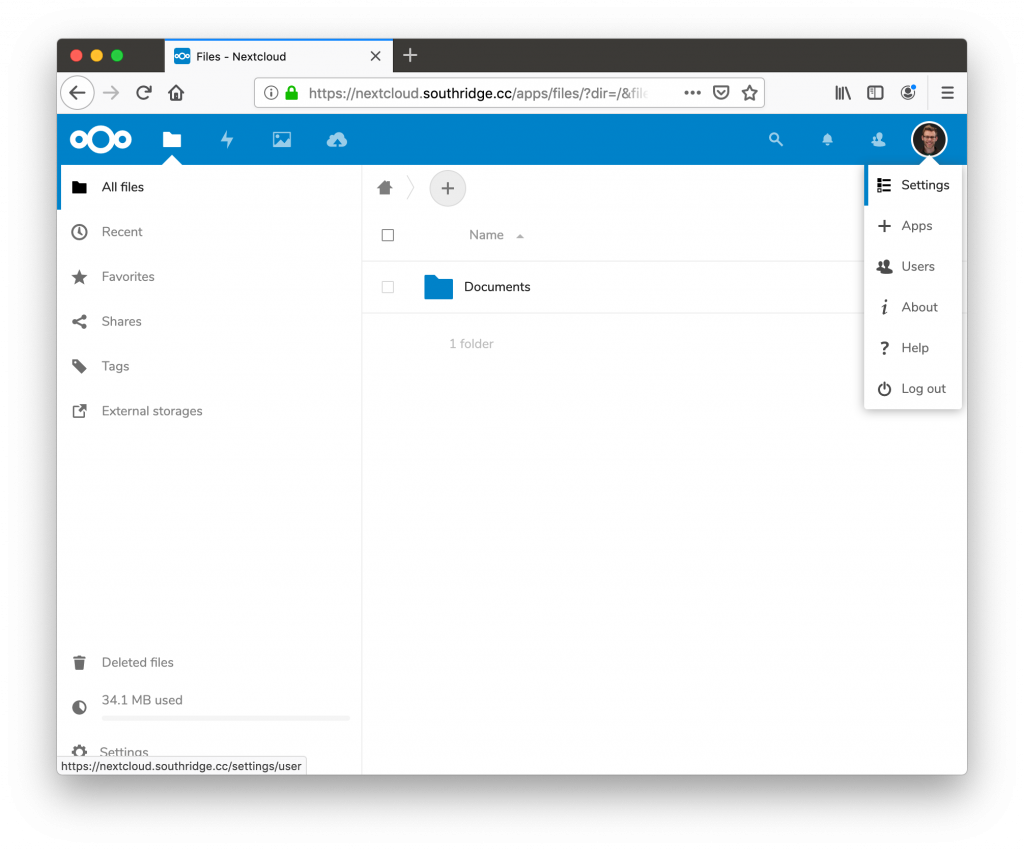
To setup an app password follow these steps on your Mac.
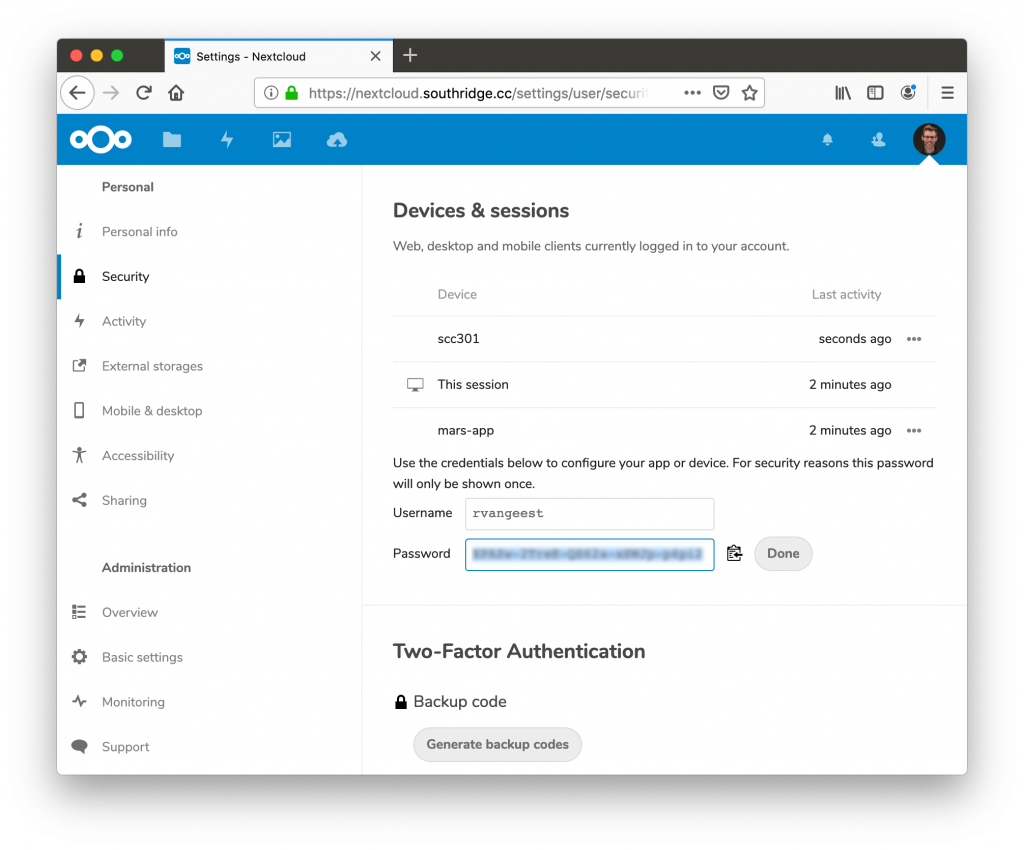
Install The App On Your Phone
I know this sounds fancy, but go to your respective App / Play Store and search for Nextcloud install that app, then it should just be a matter of following the steps below.
- Open the app, you should be presented with Server field.
- Choose Login
- Enter https://nextcloud.southridge.cc
- Choose Alternative Login With App Token
- Enter your username ie rvangeest
- Enter the app password/token you created above (or in the setup for your mac). It can not be the same password as the one used for your mac.
- Click the done button and voila!