
Having issues seeing a new file added to Nextcloud? Try these troubleshooting steps!
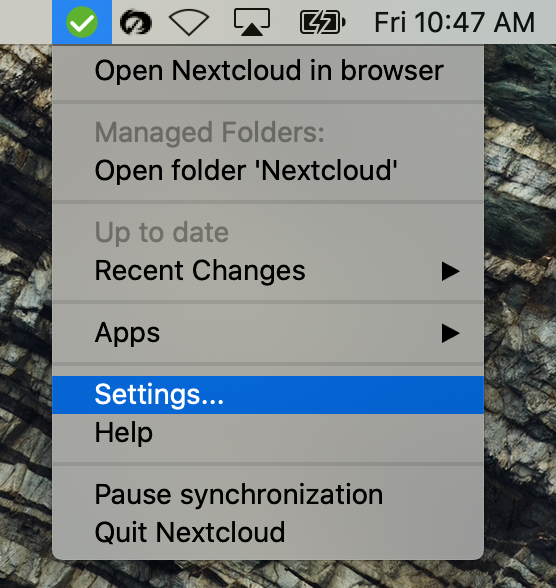
1) Is the Nexctloud app open and running? You should see an icon in your menubar. Ideally it’s a green checkmark, but it could be a red x, a yellow exclamation mark, or a blue syncing icon.

If the app is running proceed with step 2. If the app is not running, expand the dropdown below.
2) Click the icon, click settings.
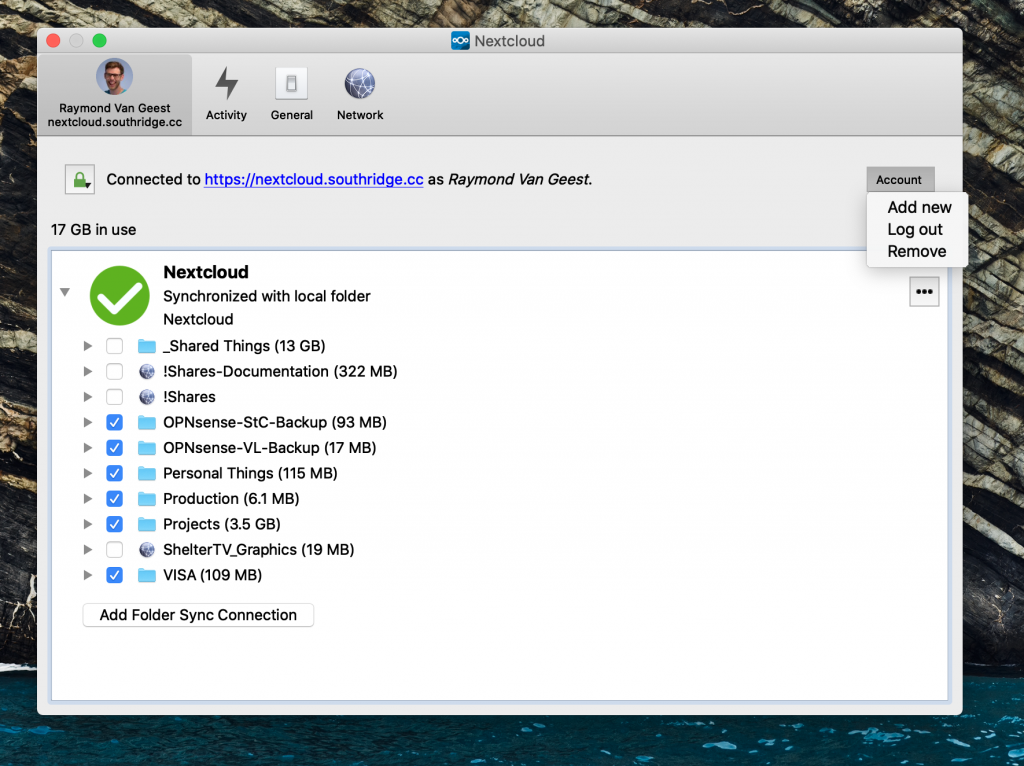
3) Check if your account is logged in. Click the Account button, if Login is an option choose it! That should solve your problems. (If it shows Log out proceed to the next step)
4) If you are logged in, try forcing a sync. Click the 3 dot icon beside the big Nextcloud icon and choose Force sync now.
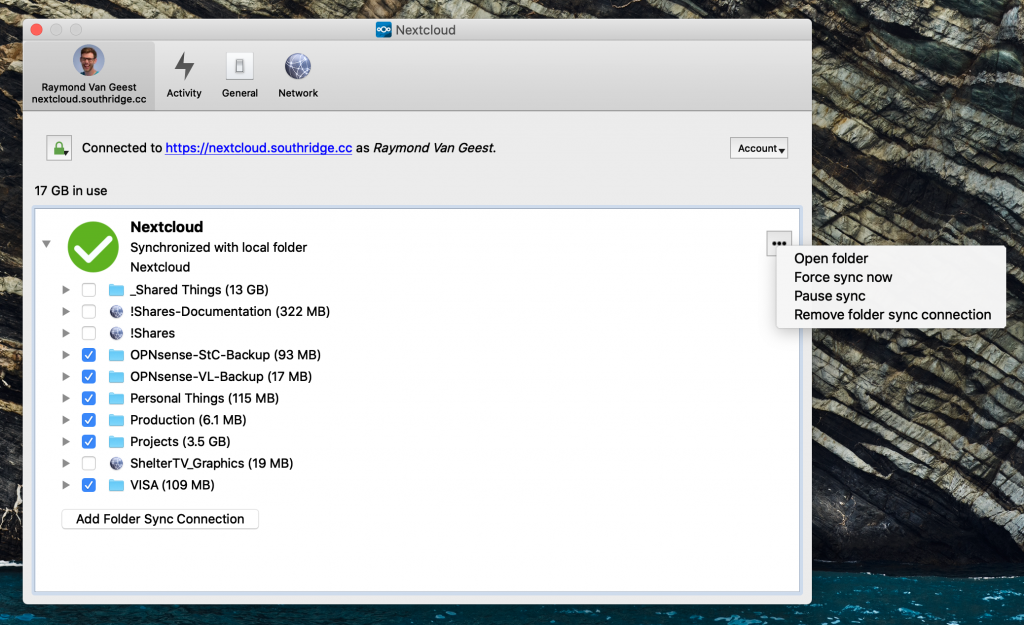
That should be it! Nextcloud should now be syncing your missing files.
It’s still not working!
If all else fails, quit Nextcloud. Click the Nextcloud icon in your menu bar, choose Quit Nextcloud. Then open Finder, click Applications from the sidebar, scroll through the list and double click Nextcloud, hopefully that solves it!