
To book a room for use, be it for a meeting, or an event, we use our email platform to accomplish this.
Book in Outlook
It is simplest to use the Outlook web app to set this up. Login to your email account at https://outlook.office365.com and go to the calendar tab along the left.
- Double-click on the day you want to create an event/meeting and complete all the relevant details needed.
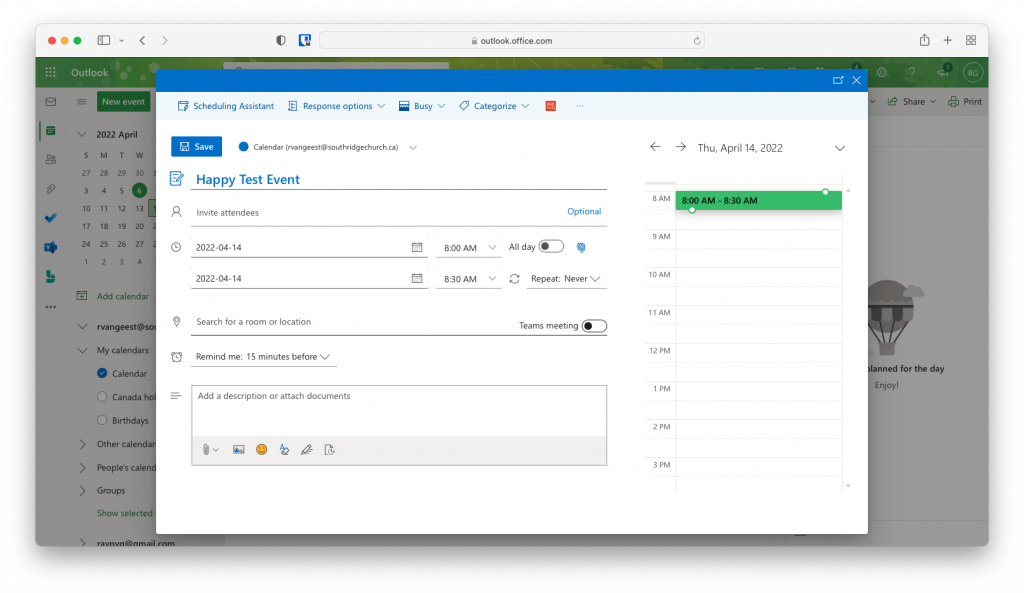
- From the top menu bar, choose Scheduling Assistant to get an easy view of when attendees and rooms are available.
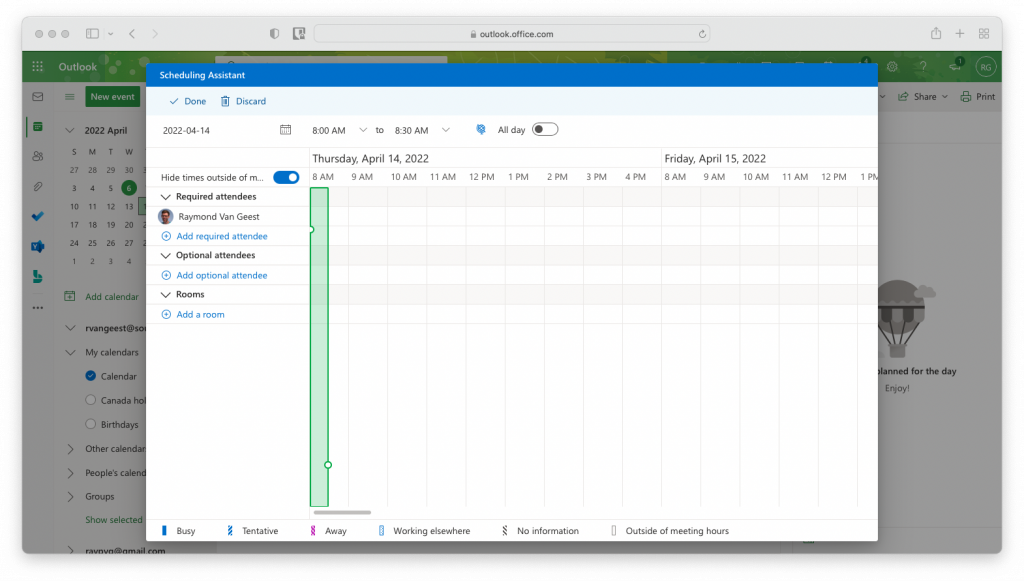
- Under Rooms click Add a Room and choose Browse with Room Finder
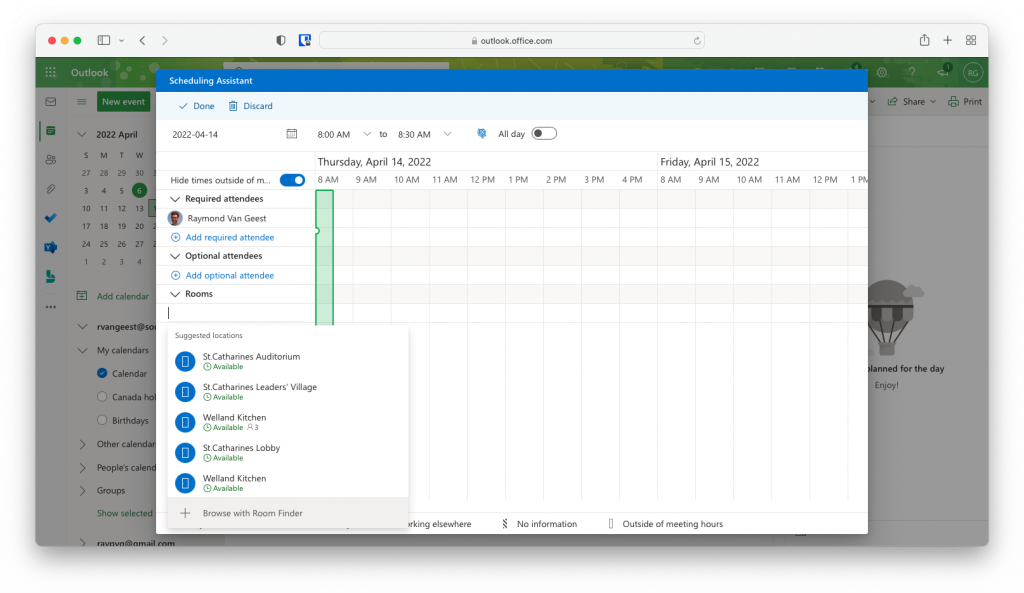
- From the Select a building field type in the site you are wanting to book the room for.
- For St.Catharines, type in StC Rooms
- For Welland, type in WL Rooms
- For Vineland, type in VL Rooms
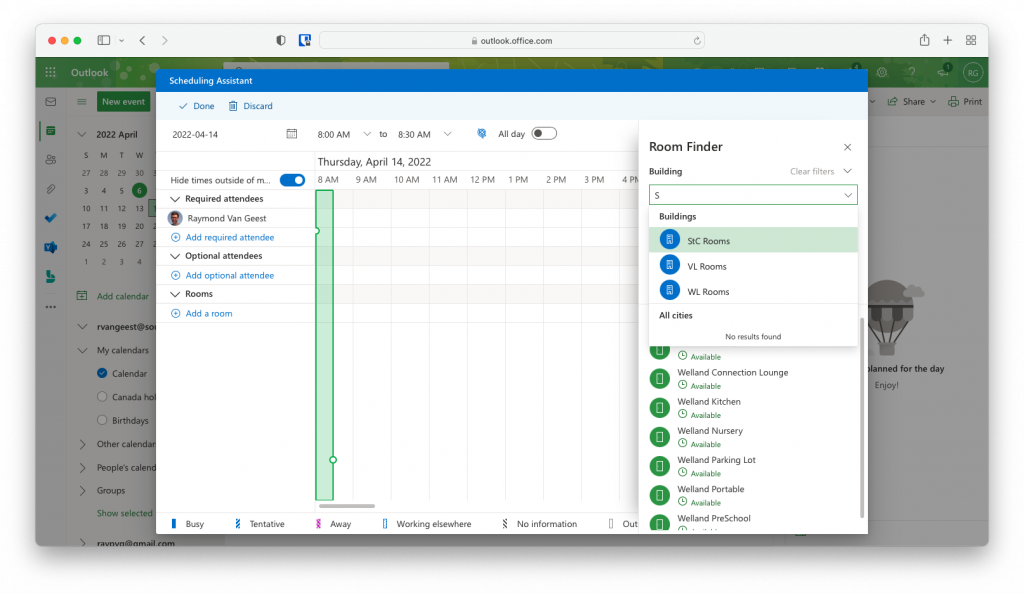
- From there select the specific room you are looking to book. You can select multiple rooms if needed.
- Complete your event and hit Send to send the invite out.
- The room will auto-respond and confirm if it is or is not available for that event. Some rooms will not confirm but will reply saying tentative. These rooms have to be approved by our Facility Manager. You will get a reply when it is confirmed/denied.
Book Events on a Secondary Calendar
Sometimes if you are regularly booking rooms for guest uses, say a life group using a space. You don’t necessarily want that showing up on your personal Outlook calendar. Instead you can book it under a second calendar on your account.
To create an additional calendar…
- Click the Add calendar button below the mini calendar on the left.

- Choose Create Blank Calendar from the options on the left.

- Give the calendar a relevant name, ie Bookings, colour and charm to help distinguish it.
- Under Add to, it’s likely best to add it to My calendar
- Press save when complete!
- Now when you book an event you will see an option along the top saying Calendar ([email protected])
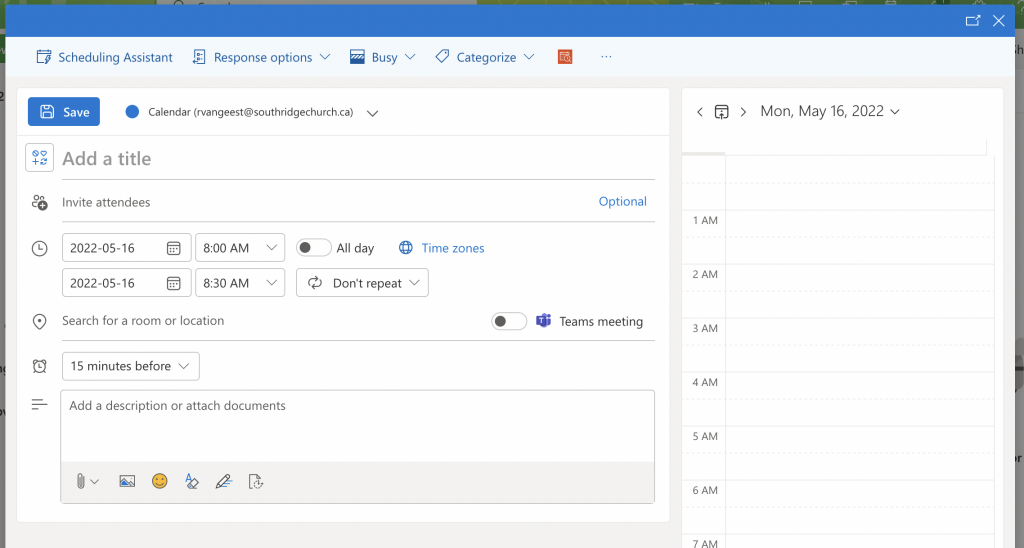
- Click the little drop down arrow beside that and change it to your bookings calendar.
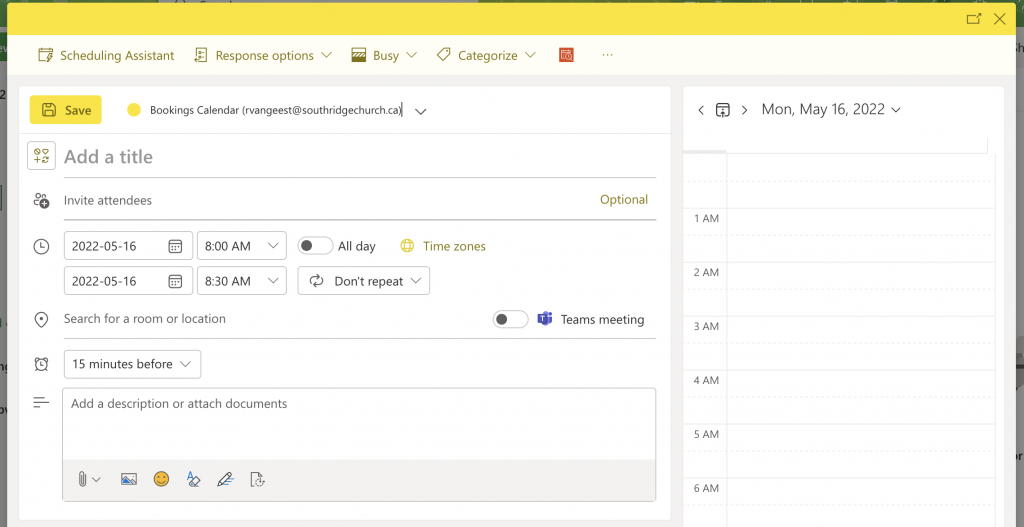
- Now you can add events/bookings to this calendar and not have it show up on your main calendar.
Important Notes for Secondary Calendar
- When you click on the meeting, you will not see accepted/declined in the meeting information. This is just a way that Outlook works. You will get email responses though.
- Luckily when booking a room in Outlook it will show you if the space you are wanting is unavailable!
- If you still end up booking a space when it is already in use. You will get an auto-declined email from the room.