
In this article we’re going to walk through how to build a list that you can use to send an e-mail from. In Fellowship One this would have been called Queries.
1. Getting Started
- Login to the People module of Planning Center https://people.planningcenteronline.com
- Choose Lists from the menu at the top, then choose New List.


2. Add the Rules / Criteria
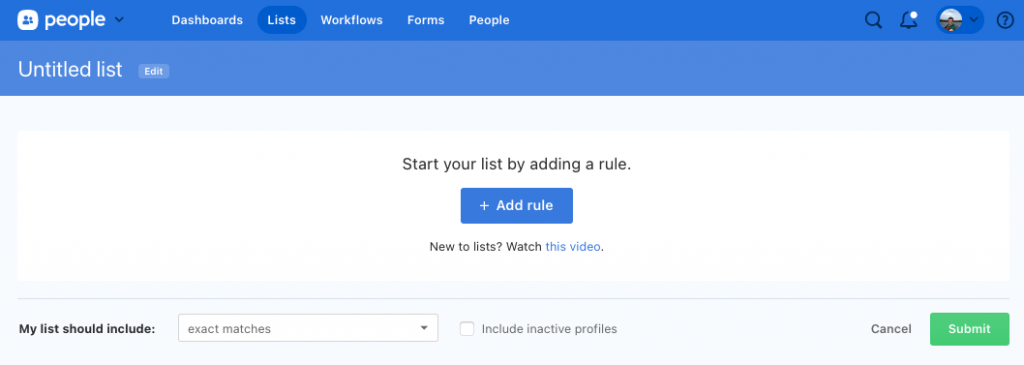
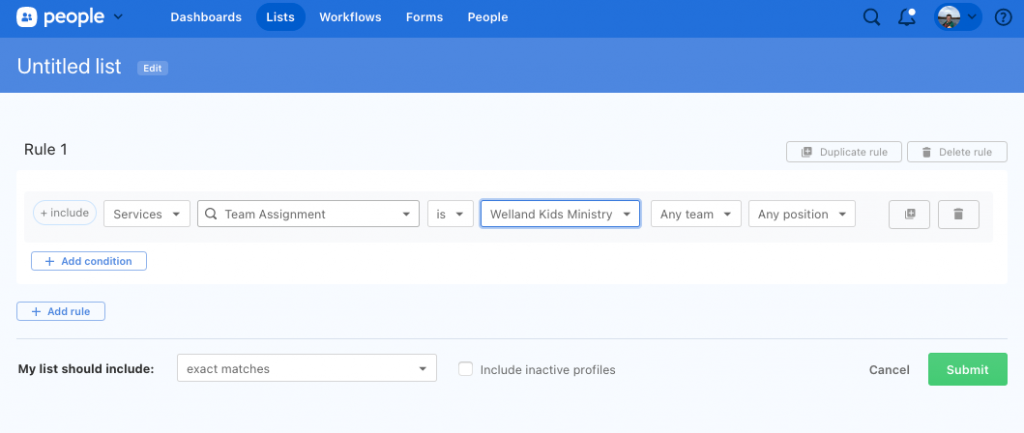
Add the specific criteria for your list. In this case we are building a list of volunteers who server in Kids Ministry.
- We select the module we want to pull data from. (Services in this example)
- We want anyone who has a Team Assignment
- We choose the specific Service Type we want to reference (Welland Kids Ministry)
- We could choose to select specific Positions. ie Check-Ins
- Because we have multiple sites, we want to duplicate this rule for the other sites/service types.
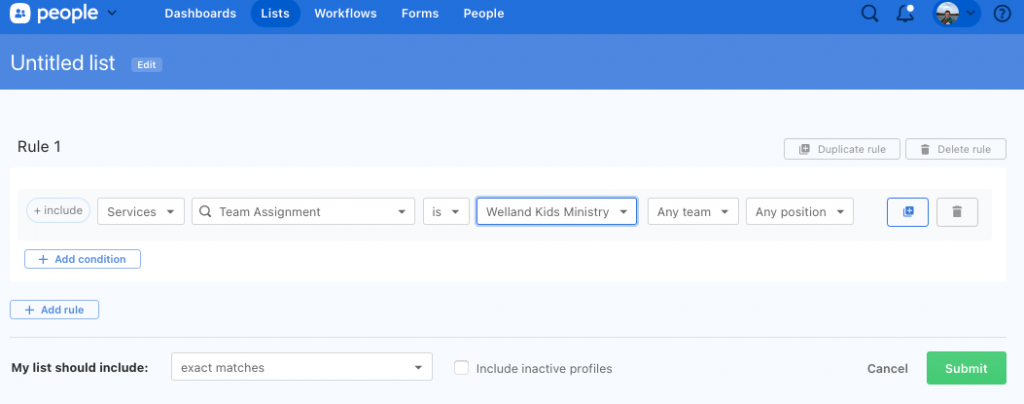
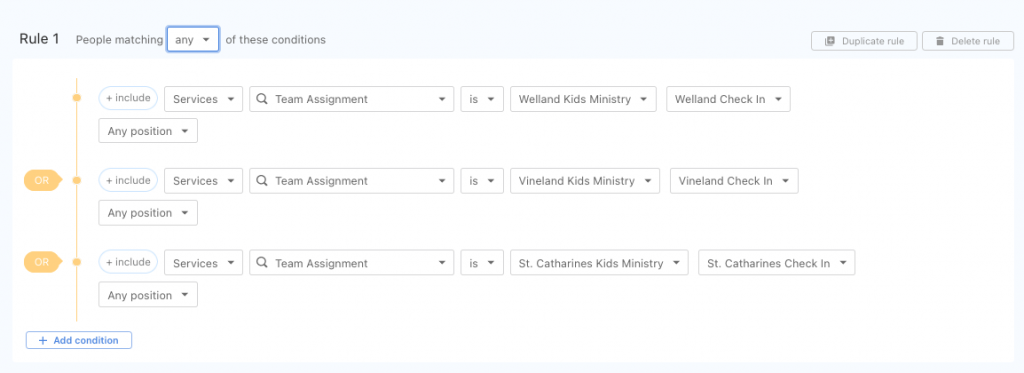
The rule is now duplicated, and now we want to change the service type to Vineland Kids Ministry, and duplicate it again for St. Catharines.
Now we also need to have it match ANY of these criteria, not ALL of these criteria. Beside Rule 1 change the dropdown from All to Any.
3. Determine Who Gets Returned
At the bottom of the list is a dropdown for who the list should return. This dropdown allows you to choose if you want parents of matches, all household members, primary contacts of members etc.
For this example list we would want exact matches.

You will rarely to never need to check Include inactive profiles.
4. Submit and Review!
Click Submit and wait while PCO builds the list in front of your very eyes!
Once the list has been generated you can view all the results and make sure that it seems you are getting the people you expected!
5. Actionable Items
From here there are a number of actions that can be taken upon a list.

From left to right you have the following actions.
- Send Message: This gives the option for Sending an email
- Bulk Action: This allows you to do apply changes to the list.
- Export CSV: Download a CSV of this list.
- Print: Can you guess what this does?
- Select Columns: What personal information shows up in the list.
- Show Rules: Shows the rules that define the list.
Send E-Mail
Here’s a specific guide for sending e-mails. Send E-Mail