
Bitwarden is a secure password vault, allowing you to only need to remember ONE complex password instead of multiple. It can autogenerate new passwords for you and save them to its vault, and then it can autofill passwords needed for specific websites.
It’s strongly encouraged that when you set a master password for the password vault, that you consider using a passphrase. Something like what this comic encourages. This is becoming an industry standard. A passphrase uses a combination of random words strung together instead of a completely random characters.
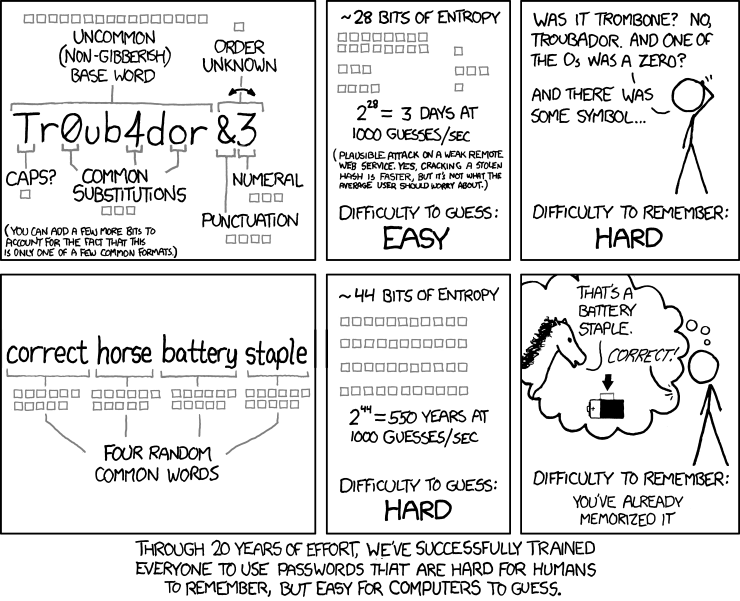
Or even a site like this helps generate passphrases. https://www.correcthorsebatterystaple.net/
Creating your Bitwarden Account
First things first, you have to create an account and a master passphrase.
- Go to https://bw.southridge.cc
- Choose Create Account
- Enter your work email address, your name and create a Master Password.
- It’s very important that you remember your Master Password. There is NO WAY TO RECOVER YOUR PASSWORDS IF FORGOTTEN.
- Hit Submit and you should be on your way.
Getting Started With Bitwarden Apps
There is a Bitwarden application installed in your Applications folder. You can launch it from there. You can also add it as a browser extension. The extension is already installed on Safari, see here.
- When you first open Bitwarden, you have to change one variable to login.
- Click the gear/settings icon in the top corner.
- Set the Server URL to: https://bw.southridge.cc
- Click save, choose Log In and enter your email and password.
For more details about specific uses of Bitwarden see their official documentation here.
Safari Extension
Specifically for the Safari extension, and as a reference for the other browsers, here is a guide to getting started with Safari.
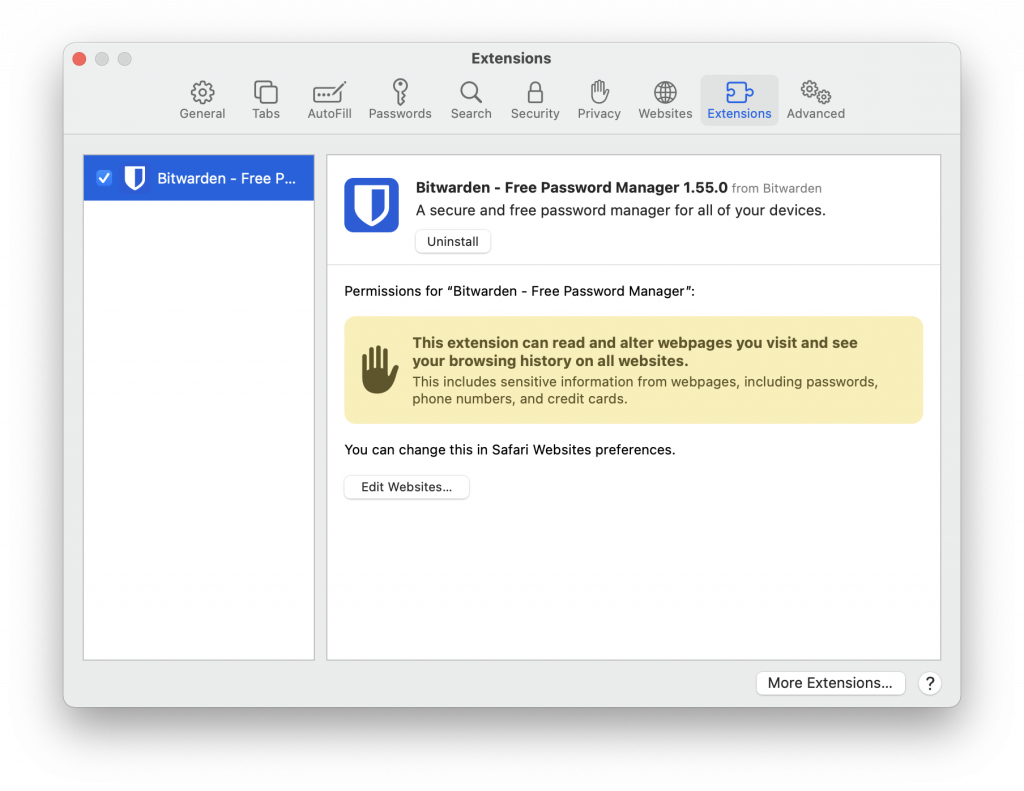
- Click Safari -> Preferences from the menu bar. Choose Extensions from the window that opens.
- Check the Bitwarden extension and check click the Always Allow on Every Website button, then close the preferences window.
3. You will see a blue shield icon beside your search bar in Safari, click it, then the settings icon and enter https://bw.southridge.cc into the Server URL field.
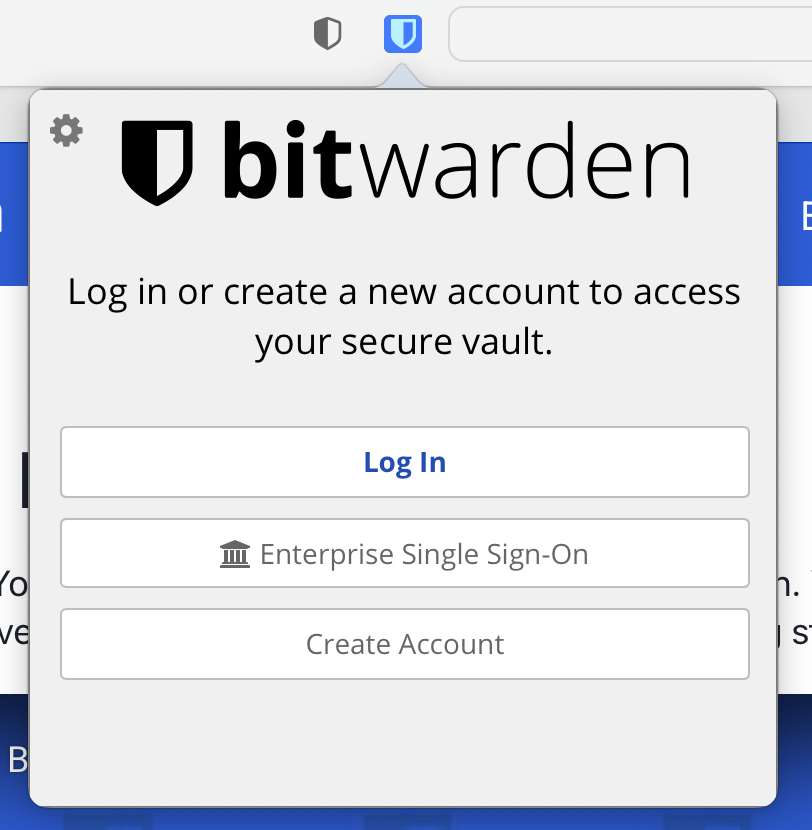
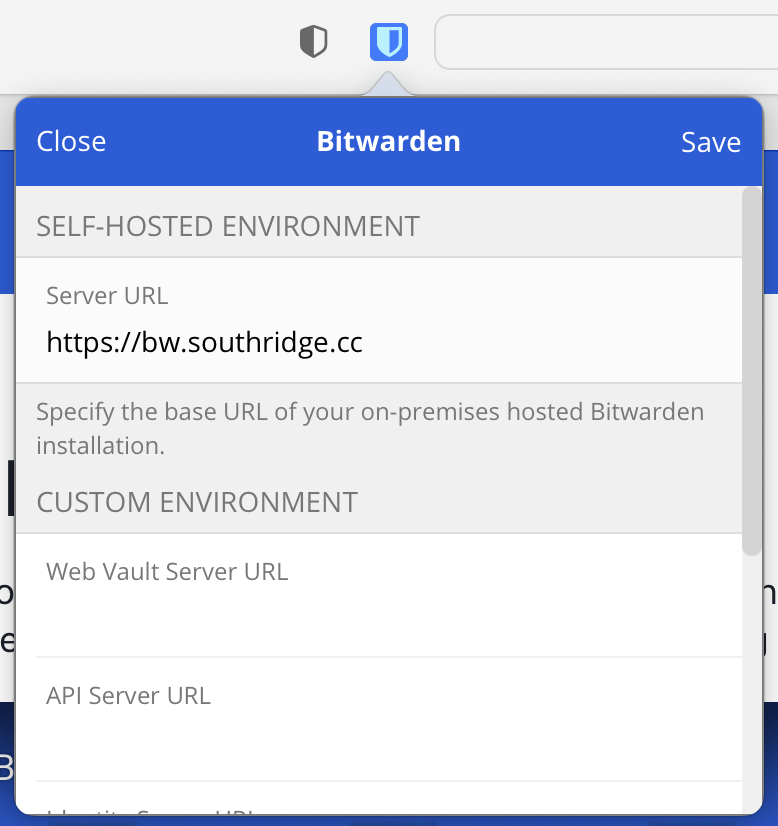
4. Press Save, and then choose Log In and enter your email address and master PassPhrase.
Now when you visit a site that you have a saved password for, click the blue shield, search for the password/account, click it and then choose Auto-Fill and Save, and it will fill in the username/password fields, and it will remember that account for future times you visit the site so you don’t have to search for it.
Happy Secure Passwording!