
Help! How do I connect to shares?
First, this depends on where you are currently working from! If you are on-site in St.Catharines, Welland or Vineland this will work quite simply.
If you are not in one of the above locations, you’ll need to connect via Tunnelblick.
Follow the guide below to connect to Shares.
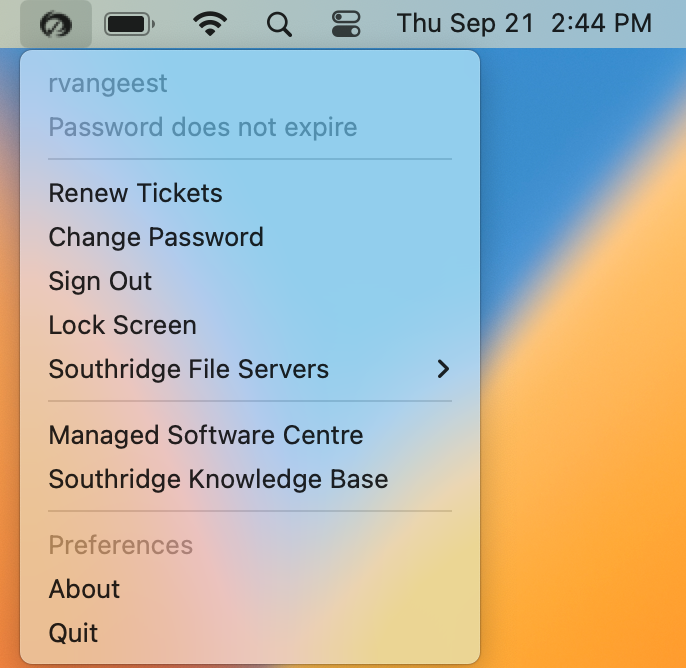
Now you are going to want to make sure that you are connected via the Southridge icon in the menubar. You want to make sure it has the checkmark inside the logo.
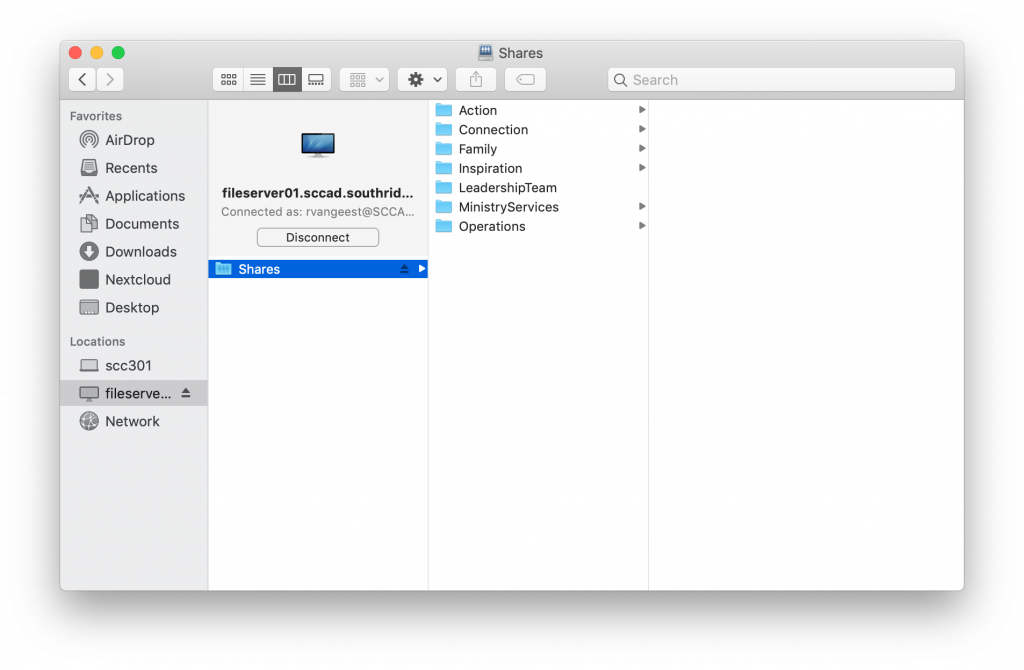
Now open a Finder window. On the right hand side under Locations should be an option called fileserver01.sccad.southridge.cc (it also should have the little eject icon beside it) when you click that you will be presented with the Shares folder!