
So you want to change your password. Specifically you want to change the password used to logon to your Mac, be it a Macbook or iMac.
There are some criteria that your new password must meet.
- Can not be the same as any previous 24 passwords
- Can not change the password more than once a day
- Be at least 8 characters.
- Not contain the user’s account name or parts of the user’s full name that exceed two consecutive characters
- Contain characters from three of the following four categories:
- English uppercase characters (A through Z)
- English lowercase characters (a through z)
- Base 10 digits (0 through 9)
- Non-alphabetic characters (for example, !, $, #, %)
- Complexity requirements are enforced when passwords are changed or created.
I highly encourage you to use passphrases. They are a new recommended standard. See the comic for an understanding of what a passphrase is.
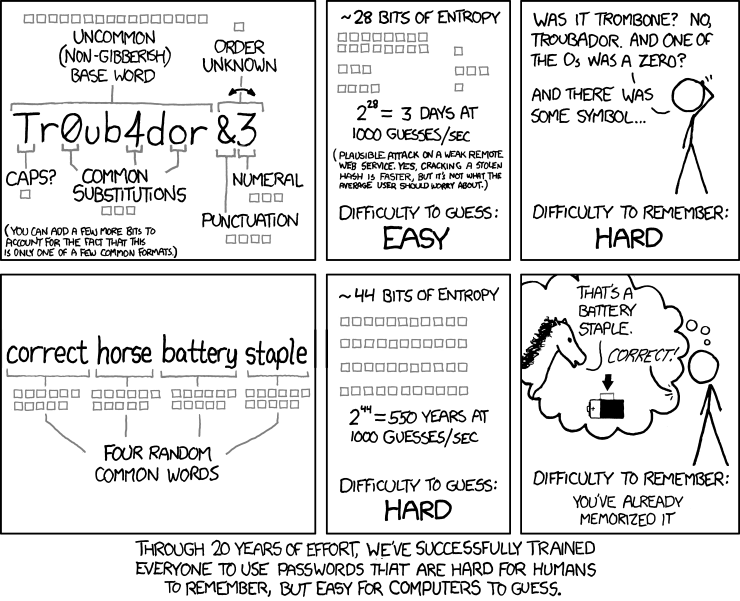
If it helps, look around your office and choose random items, then throw in a capital somewhere and add a number. Boom you’re off to the races.
Here are the actual steps needed to change your password.
Now you are going to want to make sure that you are connected via the Southridge icon in the menubar. You want to make sure it has the checkmark inside the logo.
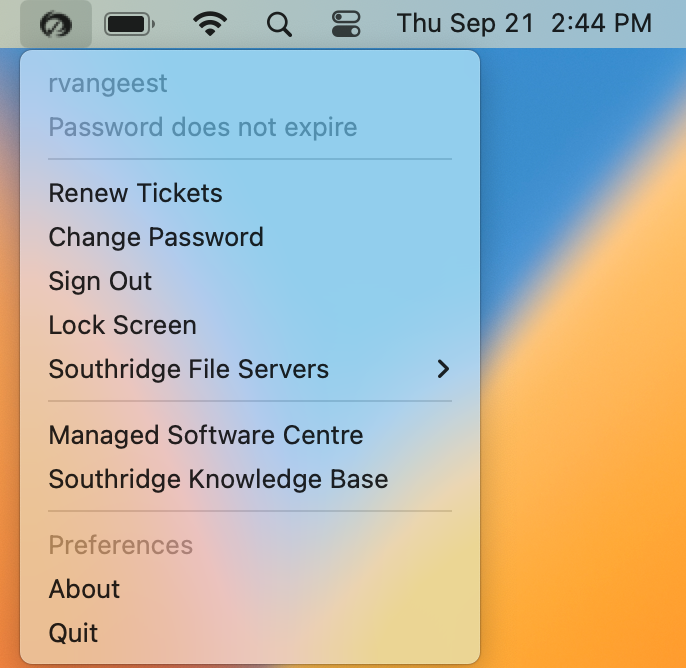
If the Southridge icon in your menu bar has a checkmark, you are all good!
If it does not click on the icon once and wait 5 seconds, if the checkmark appears you are all good!
If there is still no checkmark, you likely need to connect to Tunnelbick.
Click the Southridge icon and then choose Change Password from the dropdown menu. You’ll then be presented with a prompt to enter your current password and your new password which you will have to enter twice to confirm.
Follow the prompt and press the Change Password button. If you meet the criteria you will have successfully changed your password.