
Later is our social media post scheduler. It is also crucial to use Later any time you have a link you wish to share, as it incorporates a Linkin.Bio feature for Instagram.
Things You Will Need
- Later.com Account Access (given to you by staff)
- Photos or Graphics for your post.
Log in To Later.com
Login to https://app.later.com
In the bottom left hand corner, click the arrow buttons there to choose the “social sets” ie accounts you want to post to.
Southridge Community Church
Southridge Families
Leaders Village
Select All The Different Social Media Accounts
Once you have selected the right set of accounts/profiles from the bottom corner, you now want to click the tiny little check mark above Instagram and Facebook. You want BOTH of these checked off.
Upload & Schedule Media
Drag and drop your media to the Later window and it will get added to the media bin. Wait patiently for it to finish processing/loading. Sometimes this seems to take a while. Try refreshing the page for it to finish processing.
Now drag the media to a time and day on the calendar.
Customize Posts
Add the caption/description to the new popup window. If you have a link or multiple photos, click the Customize 2 Posts button.
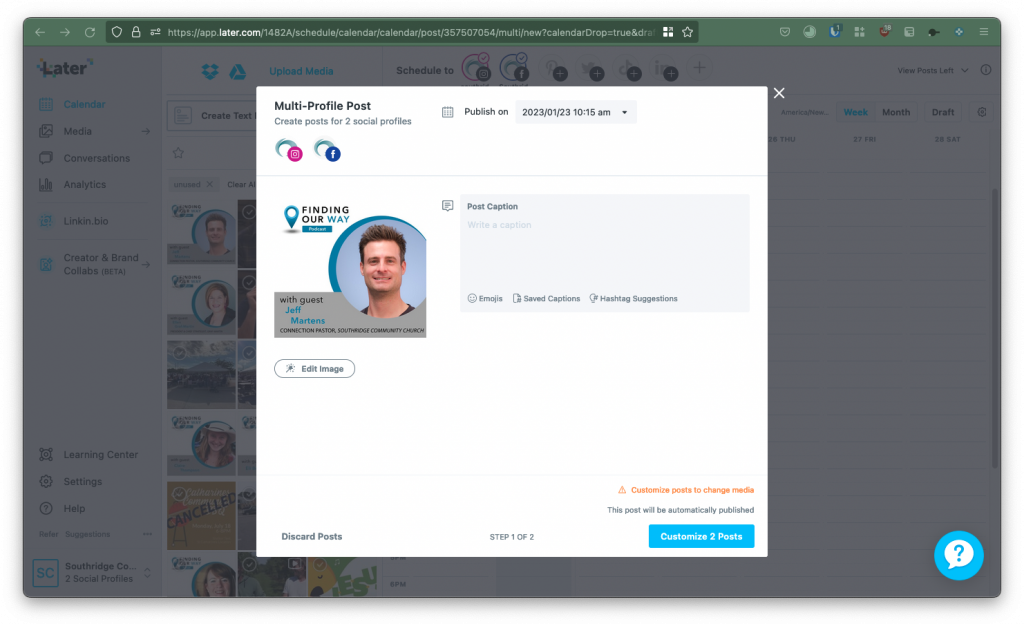
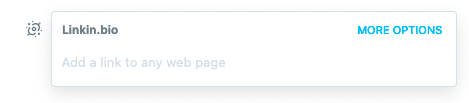
For the Instagram post, add the link under More Options > Add Linkin.bio section.
You may also have to edit the images for them to fit Instagram’s ratios. Do this by clicking the Edit Image button under the photo.
For the Facebook post, directly paste the link into the description/caption for the post. This will work fine on Facebook. (It’s Instagram that makes it complicated.)
Go Ahead and Schedule 2 Posts!
Go ahead and click that schedule 2 posts button! This will now put the posts on the calendar. They will appear as to seperate items, a Facebook post and an Instagram post.
You can still drag them around if you want to reschedule them, or you can click on them again to edit them.
Well done! You’ve successfully made a post on Later!