
Let’s walk through how to setup the Telephone app on your mac so that you can place and receive calls as Southridge from your extension.
Here is a video guide of the process. For a step by step picture guide scroll down.
Video Guide
If all went well after this video you should now have your Southridge extension setup on your computer! The app needs to stay open to be able to receive calls.
Please follow the next steps for setting up your extension and voicemail!
Setting Up Your Extension!
Text Guide
Let’s start by launching Spotlight. If you click on the Spotlight icon 🔍 in the top right-hand corner of your mac, you’ll be presented with a search bar.
- Then search for Telephone and hit enter. Something like the following window should appear.
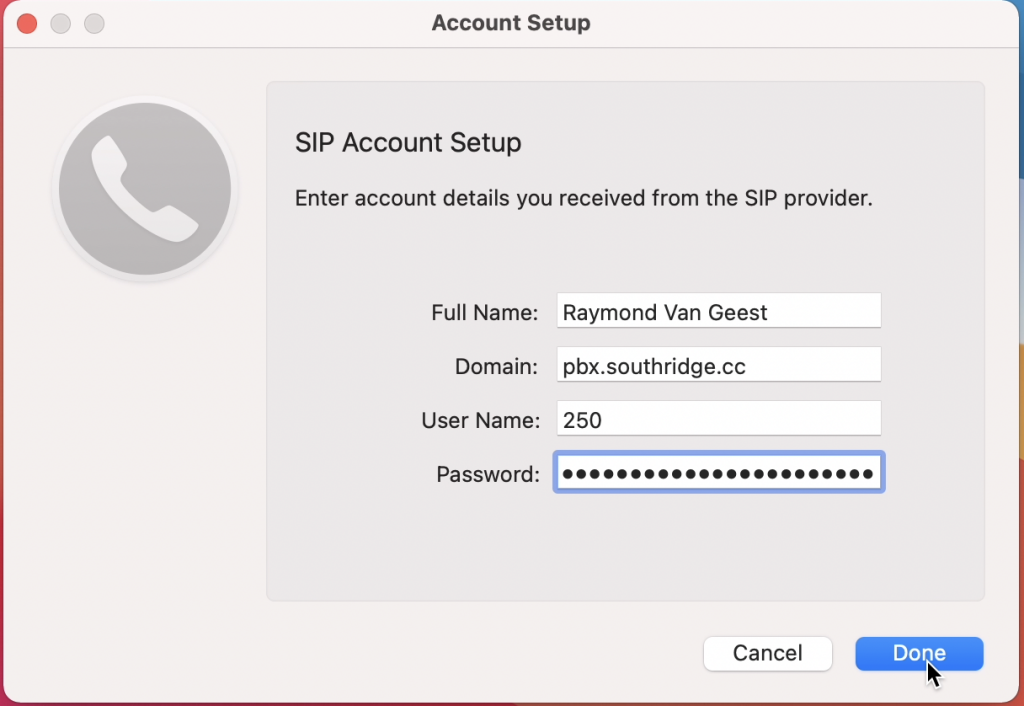
Enter the following details:
Full Name: Your Name
Domain: pbx.southridge.cc
User Name: Your 3 digit extension
Password: Provided to you in an email.
Press done to complete this step.
2. Now we are going to make some changes to make the app work better for us.
Go to the menu bar along the top of your mac, choose Telephone, choose Preferences.
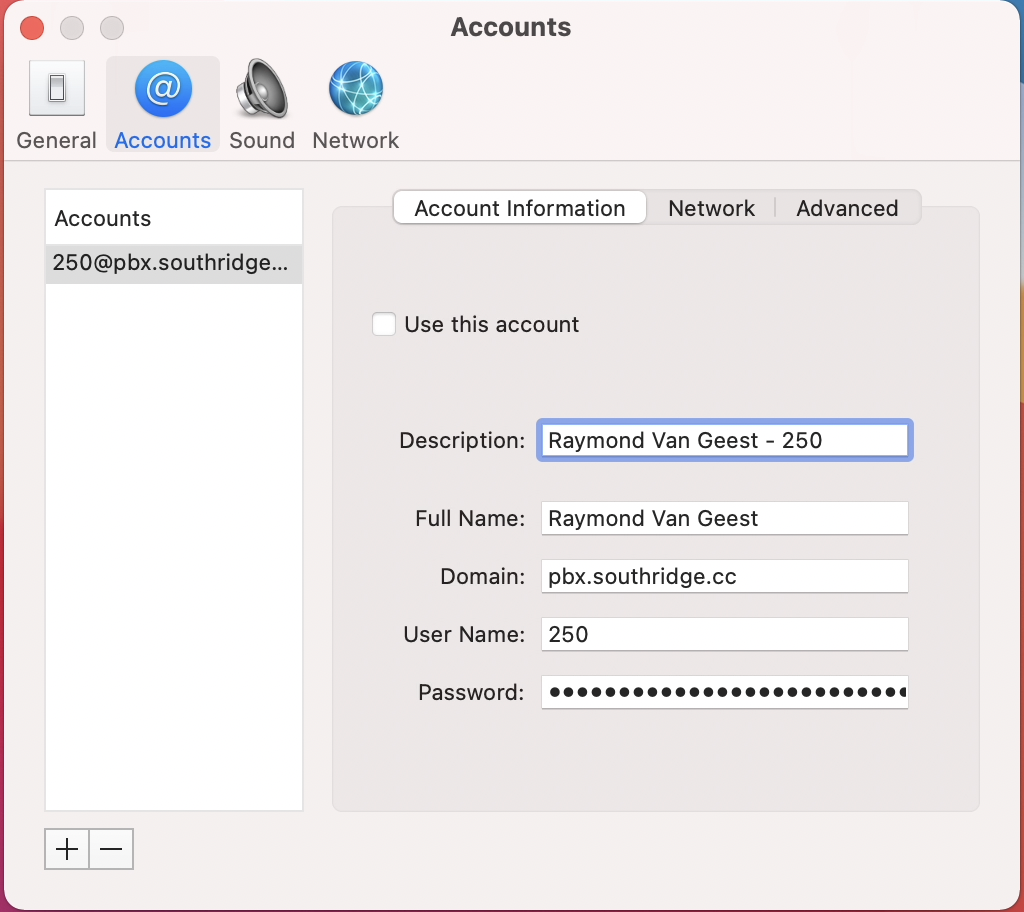
Uncheck Use this account
Rename the description to Your Name – ext
Check off Use this account
3. Go to the sound tab next.
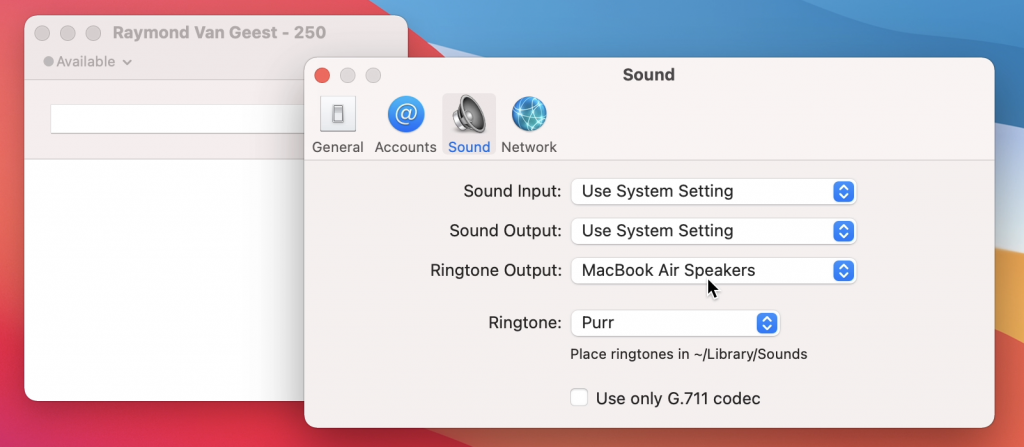
Here we are going to change Ringtone Output to Macbook Air Speakers or similar, it will depend on your device. This will allow calls to ring on the speakers of your device rather than any headphones etc you have plugged in and will help you hear calls come in.
You can choose to change the ringtone, the default is a little weird. We’ve added two more traditional ringtones to the list.
You have now completed phone setup!
To dial out, enter a 9 then the number you wish to dial, and hit enter, your call will now begin!
If all went well you should now have your Southridge extension setup on your computer! The app needs to stay open to be able to receive calls.
Please follow the next steps for setting up your extension and voicemail!
Setting Up Your Extension!