
When an extension has been created for you at Southridge there are a couple of things that you need to update, namely the recording of your name and voicemail greetings.
- When first setting up your account your default voicemail pin will be the same as your 3 digit extension. If you have setup the Telephone app (guide here) on your Mac, or have a desk phone, you can use this to record your greetings. If not you can dial into Southridge from your cell phone or any external phone to record your greetings.
Access Voicemail Greetings From Telephone App/Desk Phone
From the telephone app, dial *97 and press enter. From there the prompts will guide you through.
Access Voicemail From Your Cellphone
From your cellphone, dial 905.682.7978, enter your 3-digit extension. Press the * key during the prompt, followed by your default pin (your extension) From there the prompts will guide you through.
2. You will be guided to record:
- Your name
- An unavailable message (if your phone rings through without you picking up)
- A busy message (if you’re on a call when a second call comes in)
- You will also be prompted to enter a new pin.
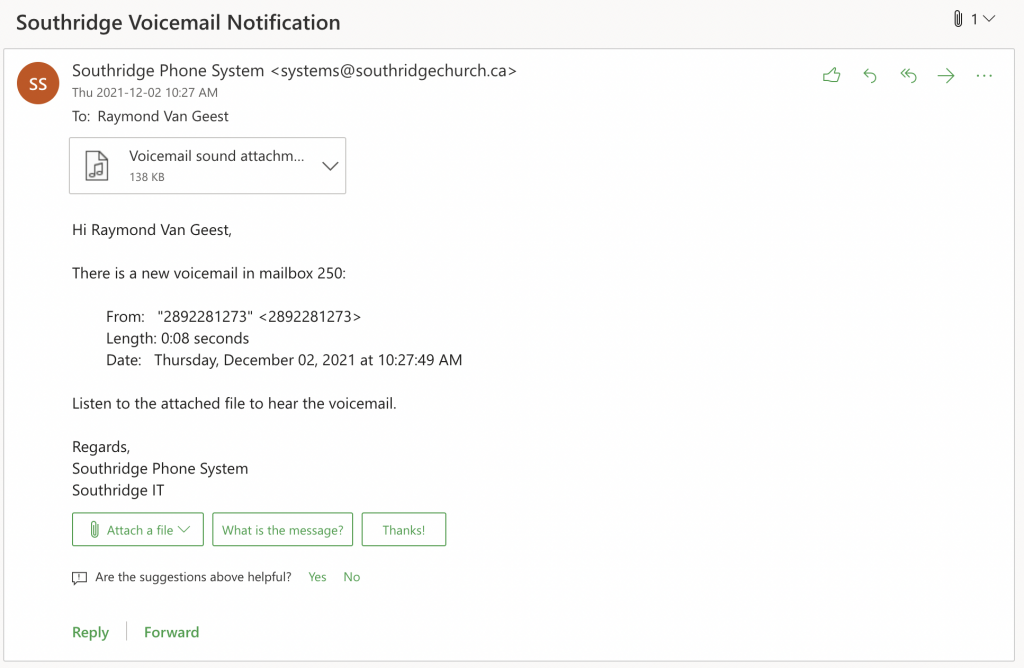
3. From now on you don’t need to access your voicemail to hear any messages left for you! Instead they will be emailed to you.
Here is an example of what an emailed voicemail will look like. These email notifications are legit and not spam!
Thanks for taking the time to set this up correctly!