
Looking to watch content back on the Vineland Lobby TV? Let’s help you figure this out!
There are two main things to know for making this system work.

The power/volume/input controls on the right hand side of the TV. 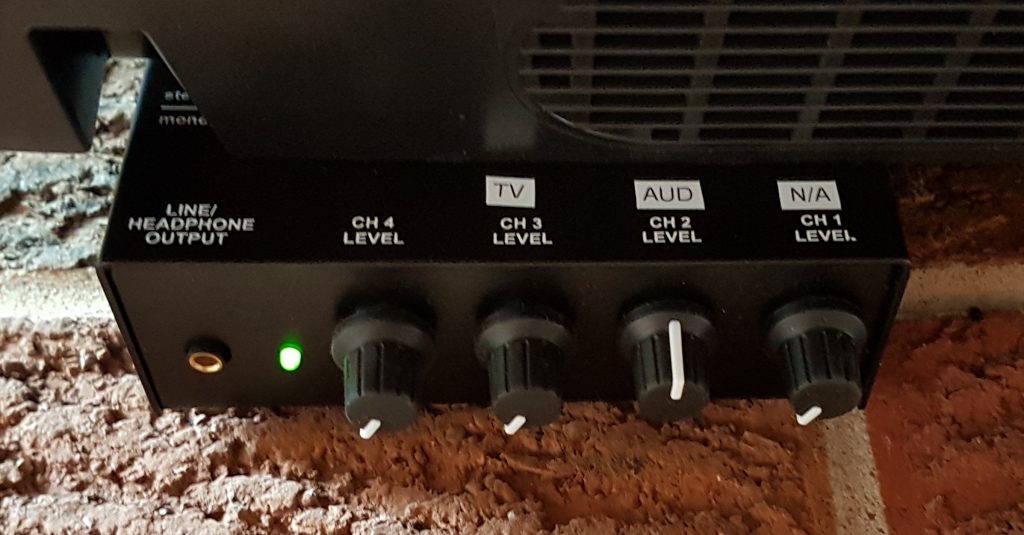
This little mixer on the bottom left hand side of the TV.
Auditorium Content
To just listen to the content from the auditorium, turn up the AUD volume knob on the mixer.
To see the content from the auditorium, turn the TV on and select input PC.
Airplay Content
To playback any content via AirPlay (from your phone or laptop) you must be connected to the SouthridgeStaff WiFi. Choose AppleTV from the AirPlay menu.
To see and listen to this content, the TV must be on, and the input needs to be set to HDMI 1.
To control the volume level adjust the TV volume knob on the mixer.
Connect via an HDMI Cable
You can also connect your laptop to the TV via an HDMI cable. This will be substantially more stable than AirPlay.
The HDMI cable is located behind the TV on the left hand side. It is already plugged into the TV, you just need to plug it into your laptop.
To see and listen to this content, the TV must be on, and the input needs to be set to HDMI 4.
To control the volume level adjust the TV volume knob on the mixer.
Connect via an Aux Cord
If you wish to just play music back over the speakers. Behind the TV is hidden a nice long auxiliary cord that you can plug into your phone or laptop. (Assuming your phone still has a headphone port!) Simply grab the cable from behind the TV, unwrap it and plug it into your device.
To listen to this content, adjust the Aux Cord volume knob on the mixer.
If you remember, please turn the TV input back to PC when you are done, and turn the volume knob you were using down to the left.
THANK YOU!