
Milestone XProtect is our new security camera software. If you are at the Shelter Front Desk we have a dedicated machine for playing back footage. This article is dedicated to that software.
The software runs on a windows machine and is called Milestone XProtect Smart Client.
It is set to auto login, but the username is shelterstaff and the password is the same as for the various Shelter Macs.
There are 3-4 main elements to the app.
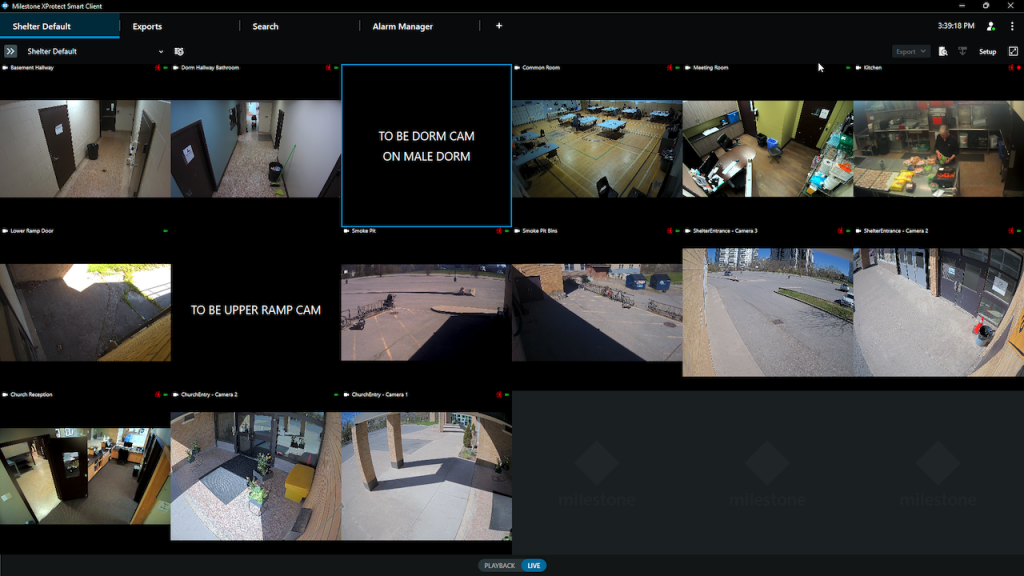
Views
You have the main live/playback window, Exports, and a Search window.
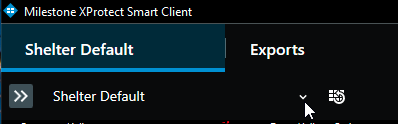
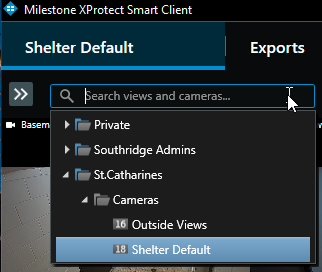
The main window gives you what’s called a VIEW, you can choose from different views by selecting this toggle.
- When you click on a camera pane, if that camera has a microphone the audio from that camera will start playing.
- If you double click on a camera it will go full screen, double click again to go back to the main view.
- When you zoom in there is an arrow overlay that allows you to move around the screen.
From this main view window you can also toggle between Playback/Live
Live is real-time footage, playback allows you to playback footage from all the current cameras on the view.
Using playback you can see along the bottom all the red sections. Those indicate motion events that have recordings.
- If you select a single camera on the view it will also show that camera’s recordings in the scrub window.
- You can click and drag the timeline along the bottom to go forward and back in time to look for particular recent footage.
- Use the playback controls to play, pause, play backwards or advance to the next motion event.
- You can use the 1x indicator on the right to change playback speed.
Playback
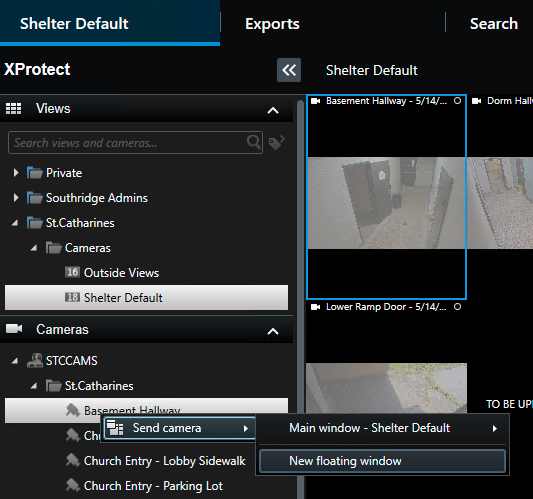
If you want to watch footage back of a particular camera… Open the pane on the left hand side of the client, from the Cameras section choose STCCAMS > St.Catharines. Right click on the camera you wish to use and select Send Camera to.. New Floating Window.
This will cause that camera to pop up in a new window to review just that footage.
Exports
The Exports tab is irrelevant in the smart client. It’s preferred to use the web portal. For a full guide on exporting. Click here.
Search
The search tab allows you to pull up specific recordings from multiple cameras. Choose the specific time you are searching for, and then add cameras.
HOWEVER, it may be easier to use the Playback function in the main views window.
To add cameras you will have to go through the folder STCCAMS/St.Catharines/Cameras, there you will be able to find all the cameras that you may wish to add to the search.
Once selected you can scroll through the particular clips that appear and play them back.
Search does not support playback of any audio recordings that happened on the camera. Hence why the main view Playback function may be more helpful.